> ## Documentation Index
> Fetch the complete documentation index at: https://docs-staging-feat-docs-5540.mintlify.site/llms.txt
> Use this file to discover all available pages before exploring further.
# データベース接続のテスト
> Auth0 ダッシュボードを使用してアプリケーションのデータベース接続をテストする方法について説明します。
Auth0ダッシュボードを使用してアプリケーションのデータベース接続をテストできます。構成したデータベース接続は、アプリケーションへのログインに使用できます。
適切にテストするためにはあらかじめ[データベース接続を設定](/docs/ja-jp/get-started/applications/set-up-database-connections)しておき、データベース接続用の [ユーザーを作成](/docs/ja-jp/manage-users/user-accounts/create-users)しておく必要があります。
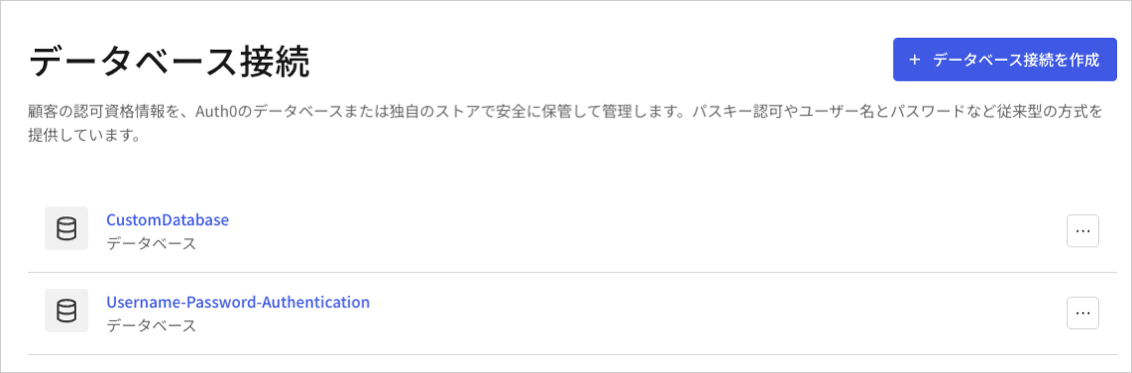
1. [[Auth0 Dashboard]>[Authentication(認証)]>[Databaseデータベース)]](https://manage.auth0.com/#/connections/database)に移動し、テストしたい接続の横にある **[Try(試す)]** の矢印を選択します。
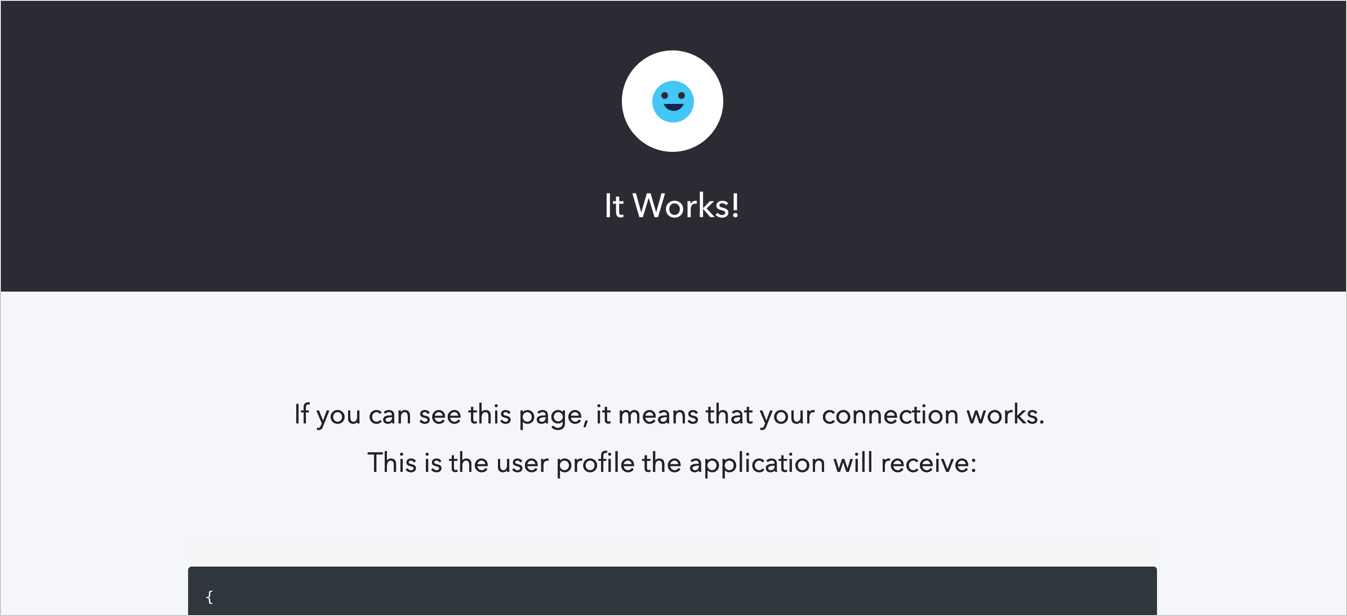
 2. テストユーザーのユーザー名とパスワードを入力します。すべてが正しく設定されていれば、**It Works!(成功しました)** というページが表示されます。
 ## もっと詳しく
* [データベース接続をセットアップする](/docs/ja-jp/get-started/applications/set-up-database-connections)
## もっと詳しく
* [データベース接続をセットアップする](/docs/ja-jp/get-started/applications/set-up-database-connections)